

Tonkeeper TON wallet – Fix the Most Common Errors
If the Tonkeeper TON wallet ever throws errors at the worst moment, don’t panic-you can usually fix them fast with a clean checklist. This guide walks you through the most common problems people face when creating an account, backing up the seed phrase, sending TON, connecting to DApps and Telegram Mini Apps, and staying secure across devices.
You’ll get step-by-step actions, quick diagnostics, and prevention tips so you can spend less time troubleshooting and more time using TON for swaps, NFTs, staking, and everyday payments. We prioritize simple fixes first, then escalate to deeper checks only when needed. Keep your wallet app updated, verify every address, and always store your recovery phrase offline. With that mindset-and the playbooks below-you’ll resolve most wallet glitches in minutes and harden your setup for the long run.
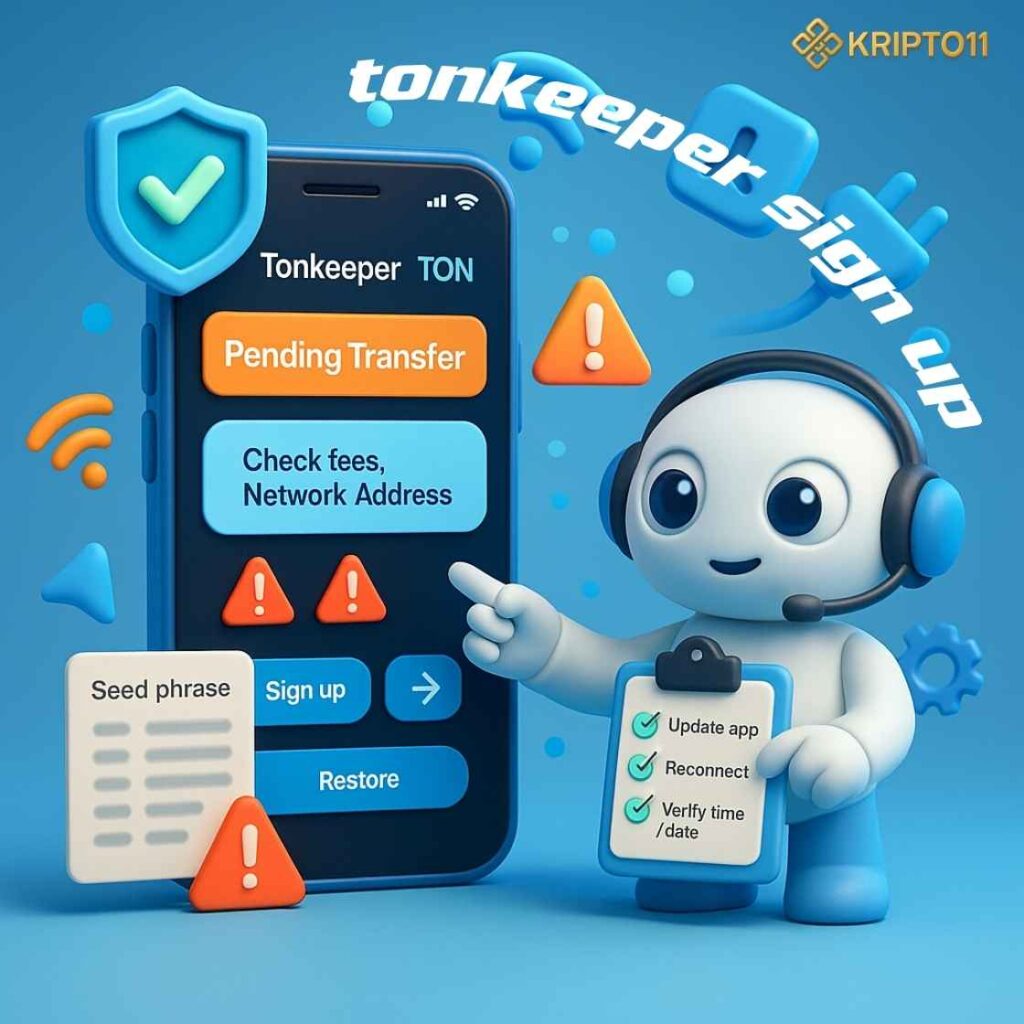
tonkeeper sign up: create, verify, and finish onboarding
Running into issues during tonkeeper sign up? Most failures come from device security settings, shaky connections, or incomplete onboarding. Start by updating the Tonkeeper TON wallet, restart the phone, and retry on stable Wi-Fi or cellular. Toggle Airplane Mode off/on to refresh radios. If biometrics refuse to enroll, re-add Face/Touch ID and set a strong in-app passcode.
For recovery-based tonkeeper sign up, type your seed phrase in exact order with spaces; switch off autocorrect and watch for look-alike words. Creating a new wallet? Finish the backup step immediately, then confirm the passcode.
On Android, allow notifications and “draw over other apps” when prompted; on iOS, grant Local Network and Face ID permissions. If onboarding loops, force-quit the app, clear cache (if available), or reinstall and restore from seed. Also verify the phone’s time and date—incorrect clocks break TLS and API calls. Before sending funds, run a tiny receive/send test to confirm the account is live. With these steps, tonkeeper sign up completes quickly and you avoid repeat errors.
Quick fixes
- Update the app → reopen → retry onboarding
- Re-enroll biometrics → enable app passcode
- Correct device time/date → restart
- Reinstall → “Import wallet” with seed phrase
Seed phrase & backup errors: recovery made reliable
Backup friction often appears when users store the seed phrase digitally, mis-order words, or confuse similar-looking terms. Write the 12/24 words on paper, in sequence, and store duplicates in separate safe places. When importing to Tonkeeper TON wallet, type each word exactly; avoid auto-correct and predictive text by switching to a plain keyboard. If a word seems invalid, re-read the original card and compare carefully-BIP-style word lists include lookalikes.
Never screenshot the phrase, and never paste it into websites, bots, or forms outside the app. If the wallet asks you to re-confirm a few words, it’s protecting you; follow the prompts. Consider a metal backup for long-term durability. For passcodes, pick a code different from your device PIN, and enable biometric unlock for speed without compromising recovery.
Tonkeeper TON wallet : Do’s and don’ts
- Do: Handwrite two copies, store separately
- Don’t: Screenshot or cloud-save the phrase
- Do: Test a small restore on a spare device
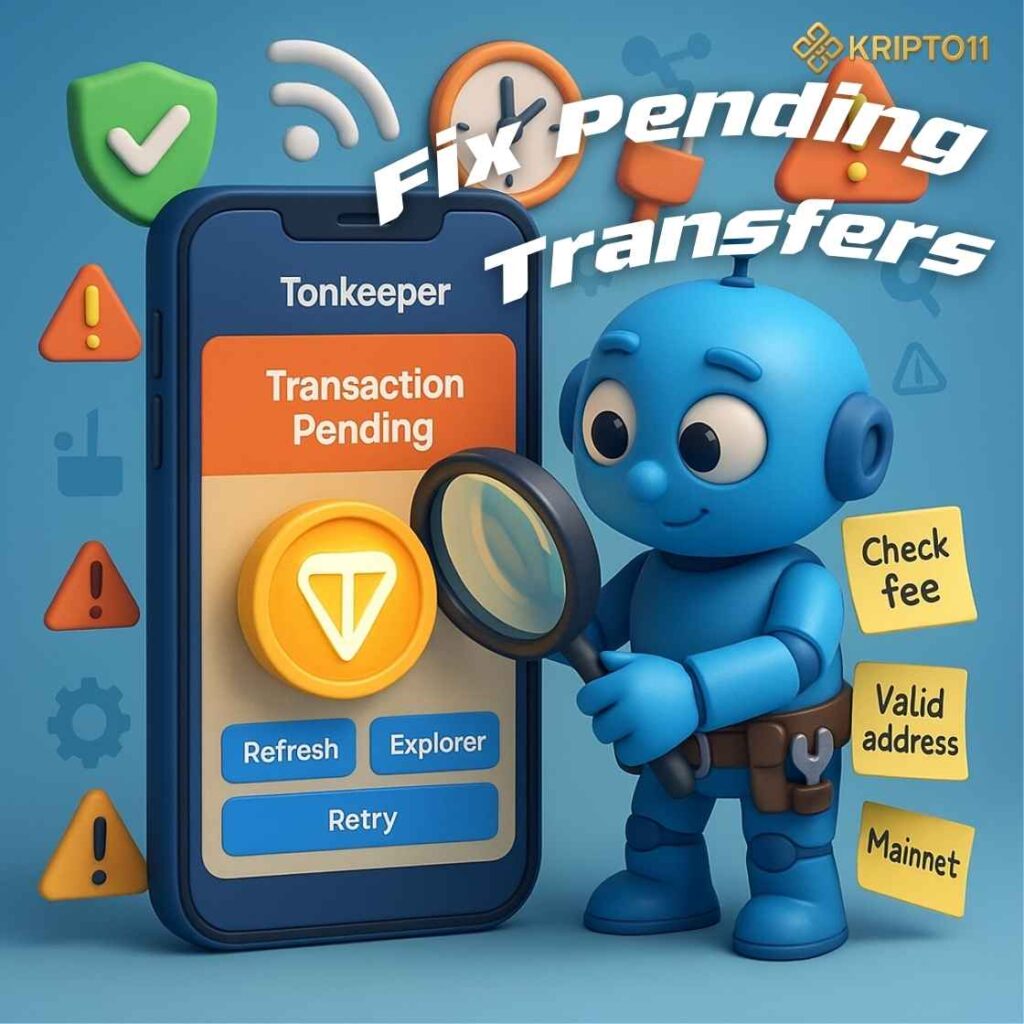
Tonkeeper TON wallet: Fix Pending Transfers
When a send sits “Pending,” think network conditions, fee settings, or local cache. First, confirm you’re on Tonkeeper TON wallet latest build and the correct TON mainnet.
Check your balance covers the amount plus fee. Avoid spamming repeat sends; that can create confusion. If the network is busy, wait a minute, then pull to refresh the transaction list. For lingering items, force-quit the app, toggle airplane mode, and reopen.
If you used a DApp or bot to initiate the transfer, ensure the DApp permission remains active and that you didn’t revoke it mid-flow.
For addresses pasted from chats, validate the full string and watch out for invisible characters. When moving large amounts, send a tiny test first. If a transaction truly fails, you’ll see it drop or revert; verify the final status on a public TON explorer.
Try this sequence
- Refresh → confirm fee + balance
- Force-quit app → network toggle → reopen
- Validate address on-chain via explorer
- Retry with a small test amount
DApps & Telegram Mini Apps: Permission Fixes
Connection loops happen when a DApp session token expires, a browser cache conflicts, or Telegram Mini Apps lose wallet permission state. Clear your in-app browser cache, close extra tabs, and reconnect the DApp from the wallet’s Connected apps screen. If Telegram prompts again, accept the wallet connect request and keep Telegram in the foreground until the handshake finishes.
Verify you’re on TON mainnet in both places, and that no VPN, private DNS, or corporate profile blocks the callback URLs. When signing messages or transactions, read the request scope: target contract, amount, and expected fee. If a DApp shows “Unknown network,” open it from the wallet’s built-in browser instead of a third-party browser. Revoke stale connections weekly to reduce drift.
Clean-reconnect checklist
- Revoke old sessions → reconnect from wallet
- Use in-app browser → confirm network
- Keep Telegram open during handshake
App updates, device issues & security: keep it fast and safe
Performance or crash loops often resolve after a clean update. Back up your Tonkeeper TON wallet seed phrase first, then update via your app store. Clear app cache if the OS allows, and ensure at least 1–2 GB free storage. Battery savers may kill background tasks—add Tonkeeper to the exception list.
If the app becomes unresponsive after an OS update, reinstall and import using your seed. For security, enable a unique app passcode, turn on biometrics, and lock screenshots in sensitive screens where supported.
On rooted/jailbroken devices, expect instability; return to a stock OS for reliable cryptography and secure storage.
Always verify download sources—use the official store listing. Finally, review your Connected apps and disable anything you don’t recognize. A lean, current setup prevents most errors from reappearing.
Preventive maintenance
- Update OS + app regularly
- Keep storage free; whitelist from battery savers
- Review connected apps weekly
FAQ — Tonkeeper TON wallet
Q1. Why can’t I finish tonkeeper sign up?
Update the app, fix device time/date, re-enroll biometrics, and retry on strong Wi-Fi. If it loops, reinstall and Import wallet with your seed phrase.
Q2. How do I restore a Tonkeeper TON wallet on a new phone?
Install Tonkeeper → Import → enter seed phrase carefully → set a fresh app passcode → enable biometrics → verify your balance with a small receive/send test.
Q3. My transfer is pending—how long should I wait?
Refresh once, force-quit, and reopen. Confirm fees and address. If busy network conditions caused the delay, the status will settle shortly; verify on a TON explorer before resending.
Q4. A DApp won’t connect-what now?
Revoke the old session, clear in-app browser cache, and reconnect from the wallet. Keep Telegram open during the handshake and confirm you’re on TON mainnet.
Q5. Is it safe to screenshot my seed phrase?
No. Handwrite two copies and store separately; consider a metal backup. Never paste the phrase into websites, chats, or bots.
Q6. What’s the fastest way to prevent repeat errors?
Stay updated, keep storage free, audit connected apps weekly, and test with tiny amounts before large transfers.




telegram bots
Casino Telegram bot
Ton coin
Ton wallet
tikiokviral
TONKeeper
LINK IN BIO
LINK IN BIO
Crypto
SOLANA
BTC
Pingback: Low Fees, Big Wins: SOL Casino Faster Deposit & Withdrawals - Blue-burn Algae Sourcing
Pingback: Crypto Gambling in Mini Apps: Why Everyone’s Doing It - KRIPTO11